
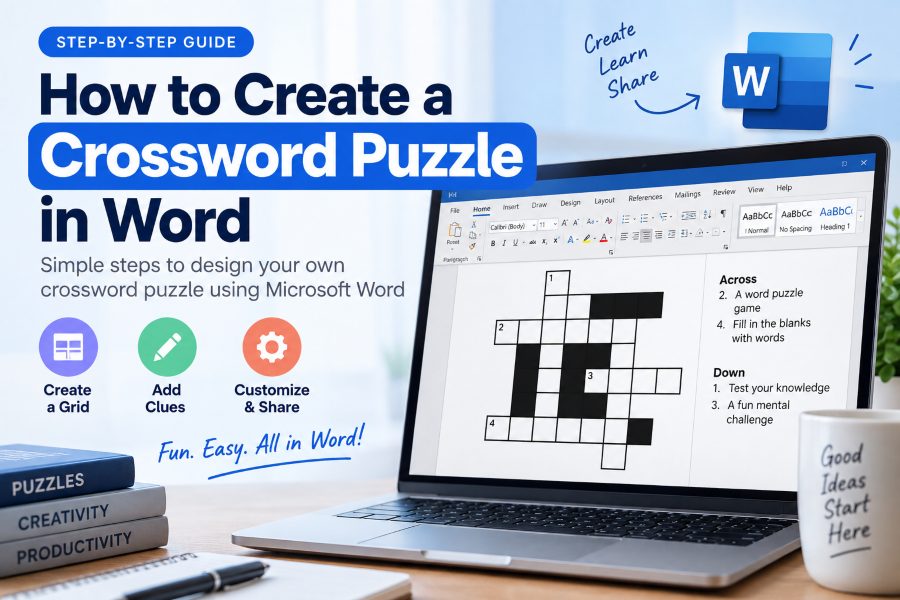
Learning how to create a crossword puzzle in word is a practical way to make classroom activities, party games, team handouts, and printable brain teasers without specialized software. Microsoft Word gives you enough control over tables, text, and page layout to build a clean puzzle from scratch.
The process starts with a simple grid and a carefully planned word list. Once the answers intersect correctly, you can add clue numbers, write the clues, and format the page for easy printing or sharing.
Although Word does not include a dedicated crossword generator, its table tools are flexible. With a few formatting choices, your puzzle can look organized, readable, and professional.
This guide explains how to plan, build, format, and check a crossword puzzle in Word so the final version is enjoyable for solvers.
Begin by choosing a clear theme, such as animals, science vocabulary, holidays, or company terminology. A focused theme makes clues easier to write and gives the finished puzzle a consistent feel.
Create a list of answers before opening Word. Use words with a range of lengths, and avoid spaces or punctuation in the grid unless you plan to explain how solvers should enter them.
Look for letters that can overlap between answers. Longer words often work well as anchors because they provide more possible intersections for shorter entries.
Sketch the arrangement on paper or in a rough digital draft first. This helps you avoid rebuilding a large table after discovering that two important words do not fit.
Keep the audience in mind while selecting clues. A puzzle for young students should use direct definitions, while a puzzle for experienced readers can use wordplay, references, or more challenging descriptions.
How Do You Build a Crossword Grid in Word?
Set Up the Page
Open a blank Word document and choose an appropriate page orientation from the Layout tab. Portrait works for compact puzzles, while landscape gives you more room for a wider grid and a separate clue area.
Insert a Table
Select Insert, choose Table, and add enough rows and columns for your planned crossword. It is usually easier to start slightly larger than needed because you can remove unused rows and columns later.
Make the Cells Square
Select the entire table and use Table Layout to set matching height and width measurements. Square cells create the familiar crossword appearance and make the grid easier for solvers to scan.
Mark Unused Squares
Click cells that are not part of any answer and apply dark shading through Table Design. These black squares separate entries and clearly show where each answer begins and ends.
Place the Answer Words
Type the answers into their planned cells, placing intersecting letters in the same square. Center the text horizontally and vertically so you can inspect alignment while building the puzzle.
Add Starting Numbers
Number each cell where an across or down entry begins. Use small text aligned near the upper-left corner, or insert a tiny number before the answer letter while you create a master solution copy.
Create the Solver Version
After checking every answer, delete the large answer letters from a duplicate of the document while leaving the clue numbers and grid intact. Save the completed version separately so you always retain the answer key.
Five Ways to Keep Your Puzzle Easy to Solve
1. Use a consistent clue style so solvers understand whether clues are definitions, fill-in-the-blank prompts, or wordplay.
2. Give each answer at least one crossing when possible because intersections help solvers confirm uncertain letters.
3. Avoid obscure abbreviations and overly specialized terms unless the intended audience already knows the subject.
4. Check that clue numbers appear only once and match the correct across and down entries.
5. Leave enough white space between the grid and clue list so the page remains comfortable to read and write on.
Useful Word Tools for a Polished Crossword
- Table borders:: Use consistent border weights to make active cells distinct without making the grid look heavy.
- Cell shading:: Fill blocked cells with black or dark gray to create clear visual breaks between answers.
- Text alignment:: Center answer letters in cells and use top-left placement for small clue numbers.
- Page breaks:: Insert a page break before the answer key to keep it separate from the solver worksheet.
- Styles:: Apply heading styles to clue labels such as Across and Down for a consistent, easy-to-edit layout.
- Print preview:: Review the document before printing to catch split tables, cramped clues, or margins that are too narrow.
- PDF export:: Save a PDF copy when sharing the puzzle so the grid layout stays stable on other devices.
Make Your Word Crossword Look More Professional
Choose a Readable Font
Use a simple, legible font such as Arial, Calibri, or Aptos for clues and labels. Decorative fonts can make small clue numbers difficult to read and may print poorly at smaller sizes.
Organize Across and Down Clues
Place the clue list beneath or beside the grid and divide it into clearly labeled Across and Down sections. List each clue in numerical order so solvers can quickly find the entry they need.
Use a Clear Title
Add a short title that introduces the theme, such as "World Capitals Crossword" or "Spring Vocabulary Challenge." A subtitle can include difficulty level, date, class name, or instructions when helpful.
Protect the Grid Layout
Once the table looks correct, avoid casually resizing individual cells because this can distort the grid. Select the table and use fixed dimensions when possible to preserve the square-cell design.
Test the Clue Wording
Read every clue as if you have not seen the answers. Revise vague clues, remove accidental duplicate answers, and make sure the grammatical form of each clue matches the answer expected in the grid.
Prepare an Answer Key
Create a separate answer page with all letters visible, or use a colored font to distinguish filled cells from the blank solver version. A reliable key is especially useful for teachers, event hosts, and editors.
Review the Printed Result
Print one test copy or inspect the PDF at full size before distribution. Confirm that squares are large enough to write in, clue text is not clipped, and the page still looks balanced outside the Word editing view.
Knowing how to create a crossword puzzle in word lets you turn a basic document into an engaging custom activity. The key is to plan the answers and intersections before spending time on detailed formatting.
A table provides the grid, shading creates blocked squares, and a well-organized clue list makes the puzzle easy to use. Saving separate solver and answer-key copies prevents accidental edits and simplifies sharing.
Start with a small themed crossword while you learn the workflow. As you become comfortable with Word's table controls, you can create larger puzzles with more sophisticated clues and cleaner layouts.
A final test solve is the best quality check. It confirms that every clue, number, crossing, and printed square works as intended.
FAQs About how to create a crossword puzzle in word
Can I create a crossword puzzle in Word without a template?
Yes. Insert a table, resize the cells into squares, shade unused cells, and add clue numbers and a clue list manually. A template can save time, but it is not required.
What table size should I use for a Word crossword?
Choose a size based on your longest answer and planned layout. A 15-by-15 table is a useful starting point for many medium puzzles, but smaller themed activities may need only 8 by 8 or 10 by 10.
How do I make crossword cells square in Word?
Select the table and set identical values for cell height and cell width in the Table Layout options. You may need to adjust page margins or orientation if the grid becomes too wide.
How do I add black squares to a crossword in Word?
Select each unused table cell and apply a dark fill color from the table shading controls. Keep the borders visible around active white cells so the puzzle remains easy to follow.
Should I type answers into the final crossword grid?
Type answers into a master copy while designing and checking intersections, then duplicate the document and remove the answer letters for the solver version. Keep the completed master as your answer key.
Can I share a Word crossword as a PDF?
Yes. Use Word's Save As or Export option to create a PDF. This is often the best sharing format because it preserves your table dimensions, fonts, spacing, and shading.